

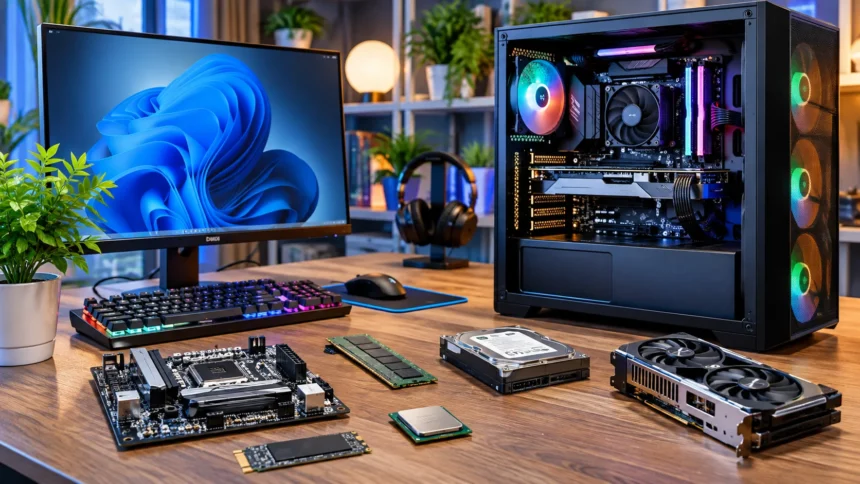
Computer hardware refers to the physical components that make a computer work. These include the processor, memory, storage drive, motherboard, and other essential parts. Every time you open a program, browse the internet, or save a document, different hardware components work together to complete the task. Understanding how computer hardware works can help you use technology more confidently and recognize what happens inside your computer.
Modern computers may look complicated, but their basic operations are surprisingly easy to understand. Each component has a specific responsibility, from processing instructions to storing information and displaying results. Whether you use a laptop, desktop computer, or gaming system, the underlying principles are largely the same. This guide explains computer hardware in simple terms, covering important components, their functions, and how they communicate.
What Is Computer Hardware and How Does It Work?
Computer hardware includes all the physical parts that allow a computer to operate. These components work together to receive information, process instructions, store data, and produce results. A keyboard, processor, monitor, and storage drive are common examples. Each component performs a different function, but they depend on one another to complete everyday computing tasks.
A simple way to understand computer hardware is to imagine a team working on a project. The processor handles calculations, memory keeps active information available, and storage saves files for later use. Input devices allow people to provide instructions, while output devices display results. Together, these components create a functional computer system.
Hardware also depends on software to determine which tasks to perform. Software provides instructions, while hardware carries out the physical operations needed to follow them. For example, when you open a web browser, the processor executes instructions, memory holds active data, and the screen displays the result. This relationship makes modern computing possible.
The Main Components of a Computer System
A computer contains several essential hardware components that support its basic functions. These usually include a central processing unit, random access memory, storage, a motherboard, and a power supply. Many computers also include dedicated graphics hardware and cooling systems. Each part contributes to overall performance, reliability, and the ability to run different applications.
The central processing unit handles instructions, while RAM provides temporary working space for active programs. Storage devices retain files and software even when the computer is turned off. The motherboard connects these components and allows them to communicate. Without proper coordination, the computer would struggle to complete even basic operations.
Other important computer parts include input devices, output devices, and networking equipment. Keyboards and mice allow users to enter commands, while monitors and speakers present information. Network adapters connect computers to local networks and the internet. Understanding these categories provides a useful foundation before exploring individual hardware components in greater detail.
How the CPU Processes Computer Instructions
The central processing unit, commonly called the CPU, is responsible for executing many of a computer’s instructions. It performs calculations, makes logical decisions, and coordinates tasks requested by software. When you open an application or perform an action, the CPU processes the necessary instructions. Its capabilities influence how quickly many computing tasks can be completed.
Modern processors contain multiple cores that can handle different streams of instructions. This allows a computer to work on several tasks more efficiently, depending on how the software is designed. Processor speed is often measured in gigahertz, but speed alone does not determine performance. Architecture, cache memory, core count, and power limits also matter.
For example, imagine opening a spreadsheet and calculating several numbers. The software sends instructions that the CPU processes through mathematical and logical operations. The results are then made available to the application for display or further processing. This sequence happens extremely quickly, allowing computers to respond to commands almost immediately.
Understanding RAM and Its Role in Computer Performance
Random access memory, or RAM, provides temporary storage for information that a computer is actively using. When you open a browser, document, or application, relevant program data is loaded into RAM. This allows the processor to access working information quickly. RAM is much faster than typical long-term storage devices but does not permanently preserve ordinary working data.
The amount of RAM available affects how comfortably a computer can handle multiple active programs. When memory becomes insufficient, the operating system may move some data to slower storage. This process can make applications feel less responsive. Having enough RAM for your workload helps reduce unnecessary delays during everyday computing activities.
RAM is different from a computer’s permanent storage. Documents and applications normally remain on an SSD or hard drive after the computer shuts down. Most RAM loses its stored information when power is removed. Understanding this distinction helps explain why computers use separate components for temporary working memory and long-term file storage.
How SSDs and Hard Drives Store Information
Computer storage devices keep files, applications, and operating system data available for future use. Two common storage technologies are solid-state drives and hard disk drives. Both store digital information, but they use different methods to accomplish this task. Their speed, capacity, durability, and cost can influence the overall computing experience.
A hard disk drive stores information magnetically on rotating platters. A mechanical arm moves read/write heads to access the required data. In contrast, a solid-state drive stores information in flash memory chips without spinning disks. Because SSDs do not rely on those mechanical movements, they generally provide faster access to stored information.
When you save a document, the operating system organizes the information and requests that the storage device write it. The device retains that data so it can be retrieved later. When you reopen the document, its contents are read from storage and loaded into memory. This process explains how computers preserve information between sessions.
What the Motherboard Does Inside a Computer
The motherboard is the main circuit board that connects important computer components. It provides physical connections for the processor, memory, storage interfaces, and expansion devices. Electrical pathways allow information to move between connected parts. The motherboard also distributes power through appropriate circuits and supports communication between different hardware systems.
Different motherboards support specific processor families, memory technologies, and connection standards. This compatibility determines which components can be installed or upgraded. For example, a processor designed for one socket may not fit another motherboard. Checking hardware compatibility is therefore essential when assembling or upgrading a desktop computer.
The motherboard also contains supporting chips and firmware that help initialize the system. These features manage hardware communication, configuration, and startup operations. Modern systems use connections such as PCI Express, USB, and storage interfaces to support different devices. Although the motherboard does not perform every computing task itself, it provides the foundation that connects the system.
How the Power Supply Keeps a Computer Running
A computer requires electrical power to operate its internal hardware. In a desktop computer, the power supply unit converts incoming alternating current into regulated direct current. Different components require specific voltages and appropriate power delivery. The power supply helps provide that electricity through connectors and internal regulation circuits.
Processors, graphics cards, storage devices, and cooling fans all depend on electrical power. The amount of electricity they require changes according to the workload. A computer performing demanding tasks may consume more power than one displaying a simple document. An appropriately selected power supply should support the system’s expected requirements.
Laptops use a somewhat different arrangement involving power adapters, batteries, and internal power-management circuits. These systems control charging and distribute electricity to the appropriate components. Modern computers also adjust power usage to balance performance and efficiency. Proper electrical design contributes to reliable operation and protects sensitive hardware from unsuitable power conditions.
How Graphics Cards Display Images on a Screen
Graphics processing units, or GPUs, handle many calculations involved in creating and processing visual information. They are particularly effective at performing large numbers of similar calculations in parallel. Graphics hardware supports tasks such as displaying interfaces, rendering games, and processing certain creative workloads. Some applications also use GPUs for scientific calculations and artificial intelligence.
A computer may use integrated graphics or a dedicated graphics card. Integrated graphics are built into the processor or another system chip and often share system memory. Dedicated graphics cards generally include their own graphics processor and video memory. The best choice depends on the applications being used and their performance requirements.
When a computer displays a game or graphical application, the CPU and GPU cooperate to produce the results. The GPU processes graphics-related instructions and prepares images for display. Those images are then sent through the display system to the monitor. This process repeats rapidly, creating the appearance of smooth movement when performance is sufficient.
How Input Devices Send Information to a Computer
Input devices allow users to interact with computers by entering commands and information. Common examples include keyboards, mice, touchpads, microphones, and touchscreens. Each device converts a physical action or signal into digital information that the computer can understand. This information is then handled by the operating system and relevant applications.
For example, pressing a key causes the keyboard to register an electrical change. The keyboard’s controller identifies the action and sends a corresponding signal to the computer. Software interprets that signal according to the active application and keyboard settings. As a result, a character may appear on the screen or a command may be performed.
A mouse works through a related process, although it often uses an optical sensor to detect movement. The computer receives movement information and updates the pointer’s position. Touchscreens detect interactions with the display surface and report them to the operating system. These devices make complicated computing operations accessible through familiar physical actions.
How Output Devices Show Computer Results
Output devices present information produced by a computer in forms people can understand. Monitors, speakers, printers, and projectors are common examples. They receive processed information and convert it into visual, audio, or physical results. Without output devices, users would have limited ways to observe the results of computer operations.
A monitor displays images by controlling thousands or millions of individual pixels. Each pixel produces color and brightness according to information supplied by the display system. The monitor updates these images repeatedly to create movement and changing interfaces. Resolution, refresh rate, and panel technology influence how the displayed information appears.
Speakers convert electrical audio signals into sound waves that people can hear. Printers create physical documents from digital information, using technologies such as inkjet or laser printing. Each output device performs a specialized task. Understanding these differences shows how computers communicate information through several forms rather than relying exclusively on screens.
How Computer Hardware and Software Work Together
Computer hardware and software depend on each other to perform useful tasks. Hardware provides the physical processing, memory, storage, and communication capabilities. Software supplies instructions that determine how those resources should be used. A computer without suitable software cannot perform the everyday applications people expect from a modern system.
The operating system plays an important role in coordinating this relationship. Systems such as Windows, macOS, and Linux manage resources and provide services to applications. They also use drivers to communicate with specific hardware devices. These drivers help translate software requests into instructions that compatible devices can understand.
Consider what happens when you play a video. The application reads video data from storage or receives it through a network connection. The processor and available decoding hardware prepare the information, while the graphics and audio systems produce the picture and sound. Several components cooperate continuously to deliver a smooth viewing experience.
What Happens When You Turn On a Computer?
When you press a computer’s power button, the system begins a startup process. Power-management circuits enable the appropriate components, allowing the processor and other hardware to initialize. Firmware starts running and checks important parts of the system. This early stage prepares the computer to locate and load its operating system.
Modern computers commonly use UEFI firmware to manage initial startup operations. The firmware identifies available hardware and follows configured boot instructions. It then transfers control to software responsible for loading the operating system. The precise sequence varies between computers, but the general purpose remains the same across many modern devices.
Once the operating system loads, it starts essential services and prepares the user interface. Drivers help connected hardware communicate with the software environment. The computer may then display a login screen or open the desktop. Although startup involves several complicated operations, most of them happen automatically without requiring user intervention.
How Computers Connect to the Internet
Computers use networking hardware to communicate with other devices and access online services. Common networking components include Ethernet adapters and wireless network adapters. These devices send and receive digital information through wired or wireless connections. A router usually helps connect the local network to an internet service provider.
When you open a website, your browser requests information from the appropriate server. The computer sends that request through its networking hardware and network connection. The server responds with the data needed to display the page. The browser then processes the received information and presents the website on your screen.
Network performance depends on several factors, including connection quality, hardware capabilities, and network congestion. A faster internet subscription does not automatically guarantee faster results in every situation. Routers, wireless signal strength, and server response times also influence performance. Understanding this helps explain why slow internet experiences can have different causes.
Why Computers Need Cooling Systems
Computer hardware generates heat while using electrical energy to perform operations. Processors and graphics chips can produce substantial heat during demanding workloads. Cooling systems transfer that heat away from sensitive components. Maintaining appropriate temperatures helps computers operate reliably and reduces the likelihood of performance restrictions caused by overheating.
Many desktop computers use metal heatsinks and fans to cool their processors. The heatsink absorbs and spreads heat, while airflow helps carry it away. Some systems use liquid cooling to transfer heat toward a radiator. Laptops often rely on compact cooling designs because they have less internal space.
Poor airflow, accumulated dust, and unsuitable cooling arrangements can contribute to higher temperatures. Modern hardware includes protective mechanisms that may reduce performance when temperatures become excessive. Keeping ventilation openings unobstructed supports effective cooling. Internal cleaning or hardware repairs should follow manufacturer guidance and appropriate electrical safety precautions.
What Determines Computer Speed and Performance?
Computer performance depends on several components working together rather than one individual specification. The processor affects instruction execution, RAM influences active workload capacity, and storage affects loading times. Graphics hardware matters especially for visually demanding applications. Software efficiency and thermal conditions can also influence how responsive a computer feels.
Different activities place different demands on computer hardware. Basic web browsing and document editing generally require fewer resources than complex video editing or modern gaming. Large spreadsheets may benefit from stronger processing capabilities and sufficient memory. Choosing hardware based on actual tasks is usually more practical than focusing entirely on impressive specification numbers.
A computer can also slow down when background applications consume excessive resources. Insufficient free storage, outdated software, and overheating may contribute to poor responsiveness. Checking system resource usage can help identify possible causes. In some cases, software maintenance provides noticeable improvements without requiring new hardware purchases.
Simple Tips for Maintaining Computer Hardware
Regular maintenance can help preserve computer reliability and reduce avoidable hardware problems. Keep ventilation openings clear so cooling systems can move air effectively. Clean external surfaces using suitable materials recommended by the manufacturer. Avoid placing laptops on soft surfaces that obstruct airflow during demanding activities.
Protecting hardware also involves careful handling and appropriate electrical practices. Keep liquids away from computers and avoid pulling cables by their wires. Use compatible chargers and power accessories that meet manufacturer specifications. If a component becomes damaged or develops an electrical problem, seek qualified assistance rather than attempting unsafe repairs.
Software maintenance also supports hardware performance and overall computer reliability. Keep the operating system and drivers updated through trusted sources. Back up important files regularly because storage devices can fail without warning. Combining basic physical care with sensible software habits helps computers remain useful and dependable for longer.
How to Choose Computer Hardware for Your Needs
Choosing computer hardware becomes easier when you begin with the tasks you want to perform. Students and everyday users may prioritize comfortable performance, portability, and battery life. Creative professionals may require additional processing power, memory, or graphics capabilities. Understanding your workload helps prevent spending money on features you rarely use.
Compatibility is especially important when upgrading individual desktop components. Check the motherboard’s processor support, memory requirements, expansion connections, and available space. A new graphics card may also require sufficient power and appropriate physical clearance. Reviewing manufacturer specifications before purchasing can prevent expensive compatibility mistakes.
Consider long-term usability rather than focusing only on immediate performance. Adequate storage, suitable memory, dependable construction, and practical connectivity can improve the ownership experience. Also review warranty coverage and repair options before choosing a device. A well-matched computer should meet your requirements comfortably without unnecessary complexity or expense.
Conclusion
Understanding how computer hardware works makes everyday technology easier to recognize and use. Components such as the CPU, RAM, storage drive, motherboard, and graphics processor each perform different responsibilities. Together, they process instructions, manage information, and produce the results displayed through computer applications. Their coordination allows modern computers to perform a wide range of tasks.
Hardware performance depends on how effectively individual components support one another. A powerful processor cannot always compensate for insufficient memory, slow storage, or unsuitable cooling. Selecting balanced components that match your workload helps create a more reliable computing experience. Regular maintenance and appropriate software management also contribute to dependable performance.
You do not need advanced technical knowledge to understand the fundamentals of computer hardware. Learning what each component does provides a strong foundation for troubleshooting common problems and making informed purchasing decisions. With these basic concepts, you can approach computer upgrades, maintenance, and everyday technology with greater confidence.
Frequently Asked Questions
What are the five main components of computer hardware?
Five essential computer hardware components are the CPU, RAM, storage drive, motherboard, and power supply. Each performs a different function, from processing instructions and holding information to connecting devices and providing electricity.
How does computer hardware work with software?
Software provides instructions that hardware executes through physical computing operations. The operating system coordinates resources, while processors, memory, storage devices, and other components work together to complete tasks requested by applications.
What is the difference between RAM and storage?
RAM temporarily holds information that active programs need for quick access. Storage devices retain files, applications, and operating system data even after the computer is turned off, making them suitable for long-term information storage.
Which computer hardware component is the most important?
No single component is responsible for every computing task. The CPU handles many instructions, but memory, storage, the motherboard, and power delivery are also essential for a functional and reliable computer.
Can computer hardware work without an operating system?
Yes, hardware can execute firmware or specialized programs without a traditional operating system. However, most personal computers require an operating system to manage resources and run everyday applications conveniently.