

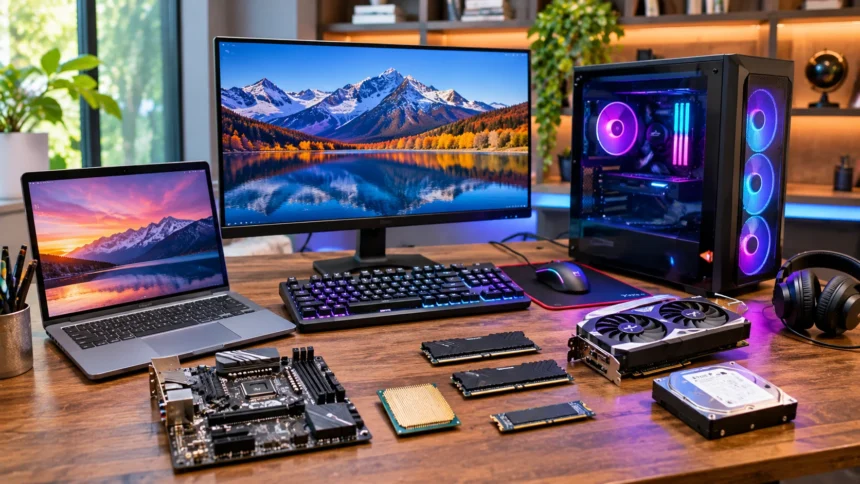
Computer hardware types include the physical components that allow computers to process information, store data, display results, and connect with other devices. From processors and memory to storage drives and graphics cards, each component performs a different function. Understanding these hardware categories can help you choose a computer that matches your daily needs, whether you’re studying, working, gaming, or creating digital content.
Choosing the right computer hardware doesn’t always mean purchasing the most powerful or expensive components. A student using basic applications may need different hardware from a video editor or software developer. This guide explains the main types of computer hardware, how they work, their advantages, and the factors to consider before upgrading or buying a new system.
What Are the Different Types of Computer Hardware?
Computer hardware refers to the physical parts of a computer system that perform essential computing functions. These components include internal devices such as processors, memory modules, and storage drives, along with external devices such as keyboards and monitors. Each component contributes to the computer’s ability to receive, process, store, and present information.
Computer hardware is commonly divided into input, output, processing, storage, memory, and communication categories. These categories describe the main functions that different devices perform. However, some hardware components serve multiple purposes, so their classification may vary depending on how they are used.
Understanding these categories makes it easier to compare computers and recognize which specifications matter for particular tasks. For example, an office computer may prioritize reliable storage and sufficient memory, while a gaming system may require a stronger graphics processor. Choosing appropriate components creates a better balance between performance, usability, and cost.
Input Hardware: Devices That Send Data to Computers
Input hardware allows users to enter information and instructions into a computer system. Common input devices include keyboards, mice, touchpads, scanners, microphones, and webcams. These devices convert physical actions, sounds, or images into signals that computer software can process.
A keyboard is useful for writing documents, entering commands, and performing everyday tasks. A mouse or touchpad helps users navigate interfaces, select items, and interact with applications. Specialized devices such as drawing tablets and scanners support creative work and document digitization.
The best input devices depend on how you use your computer. Someone who writes regularly may benefit from a comfortable keyboard, while a designer might prefer a drawing tablet. Choosing reliable, ergonomically suitable equipment can improve usability without requiring expensive or complicated accessories.
Output Hardware: Devices That Display Results
Output hardware presents information processed by a computer in a form people can understand. Monitors, printers, speakers, headphones, and projectors are familiar examples. These devices allow users to view images, read documents, listen to audio, and produce physical copies of digital information.
A monitor is one of the most important output devices because it displays the computer’s visual interface. Screen size, resolution, refresh rate, and panel quality can influence the viewing experience. Printers provide another form of output by transferring digital documents and images onto paper.
Selecting appropriate output hardware requires considering your activities and working environment. Office users may prioritize readable monitors and dependable printers, while creative professionals may need displays with accurate color reproduction. The most suitable device is one that meets your practical requirements without unnecessary features.
Processing Hardware: The Components That Run Programs
Processing hardware performs calculations and executes instructions needed to operate computer software. The central processing unit, or CPU, is the main general-purpose processor in most computers. It manages a wide range of tasks, including application execution, system operations, and coordination between components.
Other processors handle specialized workloads. Graphics processing units accelerate visual rendering and certain parallel calculations, while dedicated AI accelerators support selected machine-learning operations. Some modern computers combine several processing functions within one chip, improving integration and reducing the number of separate components required.
When choosing processing hardware, consider the programs you regularly use. Basic browsing and document editing generally require less processing power than advanced simulations or professional video editing. A balanced system with suitable memory and storage often delivers a better experience than focusing only on processor specifications.
Storage Hardware: Where Computers Keep Information
Storage hardware retains files, applications, and operating system data for future use. Common storage devices include solid-state drives, hard disk drives, USB flash drives, and memory cards. Unlike ordinary system RAM, these devices are designed to preserve stored information when the computer is switched off.
Solid-state drives are popular because they offer fast data access and contain no moving mechanical parts. Hard disk drives remain useful for storing large amounts of information, especially when cost per unit of capacity matters. External storage devices provide additional flexibility for transferring files and creating backups.
The right storage hardware depends on how much data you keep and how quickly you need to access it. A computer used for everyday tasks may work well with a moderate-capacity SSD. Users managing large media collections or extensive project files may need additional storage or a combination of devices.
Memory Hardware: Understanding RAM
Random access memory, commonly called RAM, temporarily holds information that active applications need to access quickly. It allows the processor to work with data without constantly retrieving everything from slower storage devices. Most ordinary system RAM loses its contents when power is removed.
RAM capacity affects how comfortably a computer handles multiple open applications and demanding workloads. A system with insufficient memory may slow down when switching between programs or managing large files. However, adding more RAM does not automatically improve performance when another component is the main limitation.
For everyday browsing, office work, and school assignments, 8GB may be workable, although 16GB often provides more flexibility. Gaming, software development, and creative applications may benefit from additional memory. Always check system compatibility and the requirements of your applications before choosing a capacity.
Central Processing Unit: Choosing the Right CPU
The CPU executes instructions that support the operating system and most computer applications. Modern processors contain multiple cores, allowing them to handle different tasks or parts of workloads simultaneously. Their performance depends on architecture, clock speeds, cache, power limits, and other technical factors.
Entry-level processors are often sufficient for web browsing, online meetings, and document editing. Midrange processors provide additional flexibility for multitasking, programming, and everyday creative work. High-performance processors are useful for workloads such as complex calculations, large software builds, and certain professional applications.
Processor selection should reflect actual workload rather than brand or clock speed alone. Two processors with similar advertised frequencies may perform differently because of their designs. Comparing independent performance tests for the applications you use can provide more meaningful information than relying exclusively on marketing specifications.
Graphics Processing Unit: Integrated vs. Dedicated Graphics
A graphics processing unit, or GPU, handles graphics-related calculations and can accelerate other suitable computing workloads. Integrated graphics share resources with the main system and are commonly found in laptops and everyday desktop computers. Dedicated graphics cards have their own graphics processors and typically include specialized video memory.
Integrated graphics can handle browsing, media playback, office applications, and some casual games. Dedicated GPUs are often better suited to demanding games, professional 3D rendering, and certain video production tasks. Their usefulness depends on the specific software and whether it can take advantage of GPU acceleration.
A dedicated graphics card is not necessary for every computer user. It can increase cost, electricity consumption, and cooling requirements. If your activities mainly involve basic productivity, modern integrated graphics may provide an appropriate balance between capability and efficiency.
Motherboards: Connecting Computer Components
The motherboard is the main circuit board that connects a computer’s processor, memory, storage, and other hardware. It provides electrical connections and communication pathways that allow components to work together. The motherboard also contains connectors for expansion cards, cooling systems, power cables, and external ports.
Motherboards come in different sizes and configurations, including common desktop formats such as ATX, micro-ATX, and mini-ITX. Each format offers different possibilities for expansion and computer case compatibility. Laptop motherboards are usually more compact and often use designs customized for particular models.
Choosing a motherboard requires careful compatibility checks. Processor sockets, memory support, storage interfaces, and expansion slots must match the components you intend to use. Selecting a motherboard with suitable connectivity and room for reasonable upgrades can help extend the usefulness of a desktop computer.
Power Supply Hardware: Keeping a Computer Running
A desktop computer’s power supply unit converts incoming electrical power into the voltages required by internal components. It distributes power to the motherboard, processor, storage devices, and other hardware. A suitable power supply helps the system operate reliably under expected workloads.
Power supplies vary in rated output, efficiency, physical size, and available connectors. High-performance graphics cards and processors may require more power than basic office components. Choosing a unit with appropriate capacity and compatible connectors is important when assembling or upgrading a desktop system.
Quality and safety should matter more than simply selecting the highest advertised wattage. Reputable units with suitable electrical protections are preferable to poorly documented alternatives. If you are uncertain about compatibility or installation, consult the computer manufacturer’s guidance or a qualified technician.
Cooling Hardware: Fans, Heat Sinks, and Liquid Cooling
Cooling hardware prevents computer components from operating at excessively high temperatures. Processors, graphics cards, and other electronic parts generate heat while working. Fans, heat sinks, and cooling systems transfer this heat away from sensitive components to support stable operation.
Air cooling is common in desktops and laptops because it is relatively straightforward and widely supported. Heat sinks absorb heat from components, while fans help move warm air away. Some high-performance desktop systems use liquid-cooling equipment to transfer heat through a coolant and radiator.
The best cooling solution depends on the system’s power consumption, case design, and expected workload. Everyday computers generally do not require elaborate cooling equipment. Keeping ventilation paths clear and maintaining the system according to manufacturer instructions can help preserve reliable performance.
Networking Hardware: Connecting Computers and Devices
Networking hardware enables computers to communicate with local devices and access wider networks such as the internet. Common examples include network interface cards, Wi-Fi adapters, routers, switches, and modems. These devices support communication between computers, servers, printers, and other connected equipment.
A network adapter provides the computer with a connection through Ethernet or wireless networking. Routers direct traffic between networks, while switches connect multiple devices within a local network. Modems or other access equipment connect certain internet services to the network infrastructure.
The appropriate networking hardware depends on connection speed, coverage, reliability, and the number of devices involved. Wired Ethernet is useful when stable performance is important, while Wi-Fi provides flexibility. Home users may need only basic networking equipment, whereas organizations may require more extensive infrastructure.
Internal vs. External Computer Hardware
Internal computer hardware consists of components installed inside the main computer enclosure. These typically include the CPU, motherboard, memory, internal storage, and power-related components. They handle core operations needed for the computer to function and run software.
External hardware includes devices connected outside the computer’s main enclosure. Keyboards, mice, monitors, external drives, microphones, and printers are common examples. Many of these devices are called peripherals because they extend the computer’s capabilities or provide additional ways to interact with it.
The distinction is useful when planning upgrades or troubleshooting problems. Internal upgrades may require compatibility checks and careful installation, while many external devices are easier to connect or replace. However, some laptops have limited internal upgrade options, making external accessories particularly valuable.
Desktop Computer Hardware vs. Laptop Hardware
Desktop computers typically use larger components and offer more flexibility for certain upgrades and repairs. Many desktop systems allow users to replace memory, storage, graphics cards, and processors when compatible. This flexibility can be useful for people whose computing requirements change over time.
Laptops integrate essential hardware into compact portable designs. Their processors, cooling systems, batteries, displays, and keyboards are selected to work within limited space and power requirements. Many modern laptops have memory or other components that cannot be upgraded after purchase.
Choosing between desktop and laptop hardware depends on your priorities. A desktop may suit users who want expansion flexibility and a permanent workstation. A laptop is generally more appropriate when portability, compact size, and convenient use across different locations are essential.
Computer Hardware for Students and Everyday Users
Students and everyday computer users often need hardware that supports browsing, research, video calls, presentations, and document editing. These activities generally do not require expensive high-performance components. A reliable computer with sufficient memory, responsive storage, and a comfortable display may provide a suitable experience.
For many everyday workloads, a modern entry-level or midrange processor paired with 8GB to 16GB of RAM can be practical. An SSD can improve responsiveness when opening applications and accessing files. Battery life and portability may also matter significantly when selecting a laptop.
Before purchasing, consider the specific software required for school or daily activities. Some specialized courses may require particular operating systems, programming environments, or technical applications. Checking those requirements helps prevent buying a computer that cannot comfortably support your intended tasks.
Best Computer Hardware for Office Work
Office computers usually prioritize reliability, responsiveness, and comfortable daily operation. Common tasks include working with spreadsheets, handling email, joining video meetings, and using business applications. A modern processor, adequate RAM, and SSD storage can handle many of these workloads without requiring a dedicated graphics card.
A comfortable monitor and dependable input devices can also improve the working experience. Larger displays or multiple monitors may be useful when comparing documents or managing several windows. However, the ideal setup depends on desk space, application requirements, and personal preferences.
Security and maintainability are additional considerations for business hardware. Supported operating systems, reliable networking, and appropriate backup arrangements help protect important information. Choosing computers with sufficient performance for future software requirements can also reduce the need for frequent replacement.
Computer Hardware for Gaming
Gaming computers require hardware capable of processing game logic, rendering graphics, and responding quickly to user input. The graphics card is often important for visually demanding games, especially at higher resolutions. However, the CPU, RAM, storage, and cooling system also contribute to the overall gaming experience.
A balanced gaming computer should match its components to the desired games and display settings. A powerful GPU may offer limited benefits when paired with an unsuitable processor or insufficient memory. Similarly, a high-refresh-rate monitor is more useful when the computer can deliver appropriate frame rates.
Gaming hardware does not always need to be expensive. Many casual and less demanding games run well on modest systems, including some computers with integrated graphics. Reviewing the recommended specifications of the games you want to play is a sensible way to identify suitable components.
Computer Hardware for Video Editing and Content Creation
Video editing and digital content creation can require more processing power, memory, and storage than basic office work. Editing high-resolution footage may involve decoding video files, applying visual effects, and exporting complex projects. The hardware requirements depend on the editing software, project resolution, and type of work.
A capable multi-core processor and sufficient RAM can support smoother editing workflows. Fast SSD storage helps with media access, project files, and temporary data. Some editing programs also benefit substantially from dedicated graphics hardware, particularly for supported effects and rendering tasks.
Creative professionals should examine the requirements of their specific applications before purchasing hardware. Different programs use CPUs, GPUs, and memory in different ways. Prioritizing components based on real workloads is more effective than assuming every creative project requires the most expensive available system.
Computer Hardware for Programming and Software Development
Programming hardware requirements vary according to the type of software being developed. Basic web development, introductory programming, and lightweight applications can run on modest computers. Larger projects, virtual machines, complex testing environments, and local databases may need more memory and processing power.
For many programming activities, a responsive SSD and sufficient RAM are particularly useful. Developers often keep code editors, browsers, documentation, and development services open simultaneously. Additional memory can help maintain smooth operation when several tools are running together.
Specialized development work may require additional hardware capabilities. Machine-learning applications can benefit from compatible GPUs, while mobile development may involve particular operating systems or device-testing requirements. Reviewing your software tools before purchasing helps ensure that the computer supports the environments you need.
Computer Hardware for Artificial Intelligence Tasks
Artificial intelligence applications have different hardware requirements depending on whether users are accessing cloud services or running models locally. Many AI chatbots and online tools work through ordinary web browsers. These services perform much of the demanding computation on remote servers rather than the user’s device.
Running large AI models locally can require substantial memory and processing resources. A compatible GPU with adequate video memory may improve performance for certain inference and training workloads. However, the specific requirements vary greatly with model size, precision, software frameworks, and optimization methods.
Dedicated AI hardware is not necessary for everyone interested in artificial intelligence. Students learning basic concepts can often use cloud-based environments or modest computers. Before investing in expensive components, identify whether your intended activities actually require local acceleration and compare available alternatives.
How to Choose Computer Hardware Based on Your Needs
Choosing suitable computer hardware begins with identifying the tasks you perform most frequently. Browsing, document editing, gaming, programming, and creative production place different demands on a system. Writing down your essential applications helps clarify which components deserve attention during the selection process.
Next, establish a realistic budget and prioritize the hardware that most affects your experience. A faster SSD may noticeably improve an older system, while more RAM can help when memory is insufficient. For demanding graphics applications, a capable GPU may provide greater benefits than unrelated upgrades.
Compatibility, reliability, and future requirements should also influence your decision. Check whether new components work with your motherboard, operating system, and existing hardware. Choosing a balanced configuration is usually more practical than purchasing one powerful component while overlooking the rest of the system.
Computer Hardware Comparison: Which Type Suits You?
Different users benefit from different combinations of computer hardware. An office worker may value quiet operation and dependable storage, while a gamer may prioritize graphics performance. Comparing these needs can help you avoid paying for unnecessary features.
The following table provides general hardware priorities for common computing activities. These are starting points rather than fixed requirements because individual applications vary considerably. Always verify compatibility and the recommended specifications of your software before making a purchase.
| User Type | Main Hardware Priorities | Typical Considerations |
|---|---|---|
| Students | CPU, RAM, SSD | Portability and battery life |
| Office workers | CPU, RAM, monitor | Reliability and multitasking |
| Casual users | Integrated graphics, SSD | Affordability and simplicity |
| Gamers | GPU, CPU, RAM | Game requirements and display resolution |
| Video editors | CPU, GPU, RAM, SSD | Project resolution and software support |
| Programmers | CPU, RAM, SSD | Development environments |
| 3D designers | GPU, CPU, RAM | Rendering and modeling workloads |
| AI developers | GPU or accelerator, RAM | Model size and local computing needs |
Common Mistakes When Buying Computer Hardware
One common mistake is selecting components based only on advertised specifications. A higher clock speed, larger memory number, or expensive graphics card does not automatically guarantee better performance for every task. Real-world application requirements provide a more reliable basis for comparing hardware.
Another mistake is overlooking compatibility between components. A processor may require a specific motherboard socket, while memory modules must match supported standards. Storage drives and graphics cards may also have physical, electrical, or software requirements that need checking before installation.
Buying hardware without considering future usage can create unnecessary expenses. An inexpensive system may become limiting if your work quickly grows more demanding, while an overly powerful computer may waste money and energy. Careful planning helps identify a practical balance between current needs and reasonable future flexibility.
Conclusion
Computer hardware types include input devices, output devices, processors, memory, storage, networking equipment, and other essential components. Each category contributes to how a computer receives information, performs tasks, and communicates with users. Understanding these functions makes it easier to compare systems and recognize which specifications matter most.
The right hardware depends on the activities you want to perform. Students and office workers may prefer reliable midrange systems, while gamers and creative professionals often benefit from specialized processing and graphics capabilities. Choosing suitable memory, storage, and connectivity is equally important for building a balanced computer.
Before buying or upgrading computer hardware, identify your software requirements, establish a budget, and verify component compatibility. Avoid focusing exclusively on expensive specifications when simpler alternatives can handle your tasks. A thoughtfully selected computer can provide dependable performance, better usability, and long-term value.
Frequently Asked Questions
What Are the Five Main Types of Computer Hardware?
Five commonly discussed categories are input, output, processing, storage, and communication hardware. Memory is also frequently treated as a separate category because it performs an important function within computer systems.
What Is the Most Important Hardware in a Computer?
The CPU, RAM, storage, and motherboard are essential to most computers. However, the most important component for performance depends on the workload, such as graphics processing for demanding games.
Which Computer Hardware Is Best for Students?
Students generally benefit from a reliable processor, sufficient RAM, SSD storage, and comfortable input devices. Laptop users should also consider battery life, portability, and compatibility with required educational software.
What Is the Difference Between RAM and SSD Storage?
RAM temporarily holds information used by active applications, while SSD storage retains files and software when power is off. Both affect responsiveness, but they perform different functions within a computer.
Is Expensive Computer Hardware Always Better?
No, expensive hardware is not automatically the best choice. The ideal components depend on software requirements, compatibility, and budget. A balanced computer often provides better practical value than unnecessary high-end specifications.